How to Automatically Adjust Earbud ANC by Location (Geofencing Guide for iPhone & Android)
Introduction
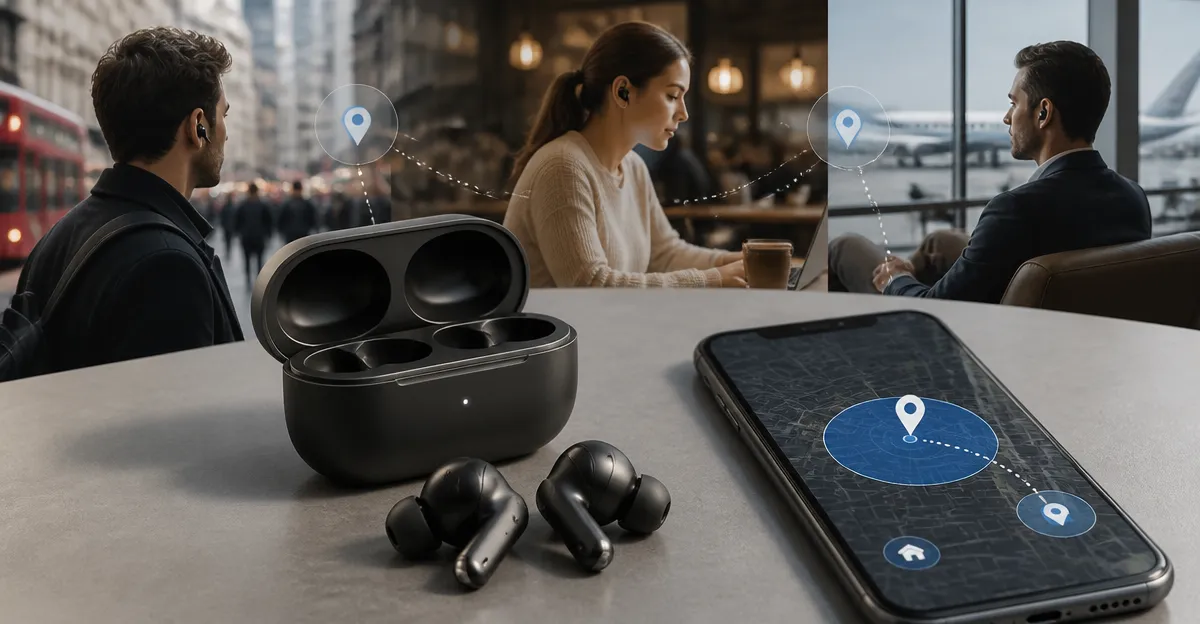
Modern wireless earbuds offer active noise cancellation (ANC) that can dramatically improve focus in noisy environments and preserve awareness in quiet settings. However, manually toggling ANC each time one moves from a bustling street to a quiet office can become tedious. This guide teaches readers how to automate ANC adjustments using geofencing—software that detects a device’s location and triggers actions automatically. By the end of the article, readers will understand how to create location‑based automations on both iPhone and Android, and they will know which earbuds are best suited for this workflow.
Automation not only saves time but also extends battery life, because ANC can be disabled when it is not needed. The techniques described work with any earbuds that expose an ANC toggle through their companion app or native OS integration. For readers who are still selecting earbuds, the guide includes carefully chosen product recommendations that excel in app control, battery longevity, and comfort.
What You’ll Need
- Smartphone (iPhone running iOS 15+ or Android 9+).
- Wireless earbuds with ANC that can be controlled via an app or system settings.
- Companion app for the earbuds (e.g., Soundcore App, TOZO App, or Apple Settings).
- Automation app: Shortcuts (built‑in on iOS) or Tasker (Android, free trial available).
- Reliable internet connection for initial app setup.
Recommended earbuds that support seamless ANC control include:
- Soundcore P30i – Strong ANC, 45 h total playtime, 4.4‑star rating, $29.99.
- Apple AirPods Pro 3 – Premium ANC with native iOS integration, 4.5‑star rating, $199.99.
- TOZO NC9 – Hybrid ANC, 4.3‑star rating, $27.99.
- Apple AirPods 4 ANC – Adaptive ANC built into iOS, 4.5‑star rating, $144.99.
- Apple AirPods 4 – Spatial audio without ANC, 4.6‑star rating, $99.00.
Step‑by‑Step Instructions
1. Install and Pair Your Earbuds
Begin by unpacking the earbuds and charging them fully. Use the provided charging case to ensure at least one full charge cycle before first use. Open the Bluetooth settings on your phone and select the earbuds from the device list. For Apple devices, the pairing process is streamlined: bring the earbuds close to the iPhone and follow the on‑screen prompt.
Why this matters: a stable Bluetooth connection is required for any automation to send ANC commands. The Soundcore P30i offers one‑step pairing via Bluetooth 5.4, which reduces latency during automation. The Apple AirPods Pro 3 benefit from the Apple H2 chip that maintains a robust connection even when the device switches between iPhone, iPad, and Mac.
2. Install the Companion App (if required)
For earbuds that rely on an app to toggle ANC, download the appropriate app from the App Store or Google Play. The Soundcore App (for Soundcore P30i) provides a clear ANC toggle, transparency mode, and a custom EQ. The TOZO App (for TOZO NC9) includes a 32‑band EQ and ANC presets.
Once installed, grant the app permission to access Bluetooth, location, and background activity. These permissions allow the automation engine to send commands without requiring you to open the app each time.
3. Create a Geofence on iPhone Using Shortcuts
Open the Shortcuts app and tap the Automation tab. Choose Create Personal Automation and select Arrive. Search for the location where you want ANC to activate—e.g., “Office” or “Gym”. Confirm the geofence radius (default 100 m works for most indoor spaces).
Next, add an action: tap Add Action**, search for “Set Playback Destination”, and select your earbuds. Then add another action, “Set Noise Cancellation”, and choose “On”. If the earbuds do not appear in the native list, use the “Open App” action to launch the companion app and send a URL scheme (e.g., soundcore://anc?state=on) if the manufacturer provides one.
Save the automation and toggle off “Ask Before Running” to ensure the action triggers silently. Repeat the process for a second automation that disables ANC when you leave the location (choose Leave trigger and set “Noise Cancellation” to “Off”).
Why use Shortcuts: iOS shortcuts run locally, preserving privacy and offering sub‑second response times. The Apple AirPods Pro 3 and Apple AirPods 4 ANC integrate directly with system‑level ANC controls, meaning no extra app is needed.
4. Set Up Geofencing on Android Using Tasker
Install Tasker from the Play Store (free trial available). Open Tasker and create a new Profile. Choose Location and map the desired area on the map interface. Adjust the radius to roughly 150 m for outdoor locations; for indoor venues, a smaller radius (50 m) reduces false triggers.
Link the profile to a new Task named “Enable ANC”. Add an App → Launch App action and select the companion app for your earbuds (e.g., Soundcore or TOZO). Follow this with an Send Intent action that calls the app’s ANC toggle intent (consult the app’s developer documentation; for Soundcore it is typically com.soundcore.anc.ON).
Create a second profile for Leave that runs a “Disable ANC” task, sending the opposite intent (com.soundcore.anc.OFF). Test each profile by moving in and out of the defined area; Tasker will display a toast notification confirming the action.
Android users who own TOZO NC9 benefit from the app’s deep integration with Tasker, allowing precise control over ANC, transparency mode, and custom EQ presets. The price of $27.99 and 4.3‑star rating make it a cost‑effective choice for automation enthusiasts.
5. Fine‑Tune ANC Settings for Each Location
After the basic automation is functional, refine the experience by adjusting ANC strength per location. Some earbuds, such as the Soundcore P30i, allow multiple ANC levels (low, medium, high). In the companion app, create custom profiles named “Office‑Medium” and “Commute‑High”. Then modify the Tasker or Shortcut actions to launch the specific profile URL (e.g., soundcore://profile?name=Office‑Medium).
For Apple devices, the “Adaptive ANC” feature automatically balances noise reduction based on ambient sound, but you can still force a mode via the Settings → Bluetooth → AirPods Pro 3 → Noise Control menu. The automation can open this submenu using a deep link (prefs:root=Bluetooth) on jail‑broken devices, though most users will rely on the native “Set Noise Cancellation” action.
Testing each scenario ensures that the earbuds respond quickly and that battery consumption aligns with expectations. Remember that ANC draws additional power; disabling it in quiet zones can extend the total listening time from 45 h (Soundcore) to over 60 h with the case fully charged.
6. Optional: Add Voice Commands for Manual Override
Even with geofencing, you may occasionally need to override the automatic setting. On iPhone, add a Siri Shortcut that toggles ANC on demand: open Shortcuts, create a new shortcut, add the “Set Noise Cancellation” action, and assign a voice phrase such as “Hey Siri, enable quiet mode”. On Android, create a Tasker widget on the home screen that runs the “Enable ANC” or “Disable ANC” task with a single tap.
This dual approach gives you the convenience of automation while preserving manual control for unexpected situations, such as a sudden loud announcement in a quiet library.
Tips & Pro Tips
- Battery Management: Schedule a nightly automation that disables ANC and puts the earbuds in low‑power mode while you sleep. This conserves the case’s charge for the next day.
- Use Multiple Geofences: Create separate zones for “Home”, “Work”, “Gym”, and “Transit”. Each zone can have its own ANC level, transparency mode, and EQ preset.
- Test Radius Accuracy: GPS can be less precise indoors. If you notice false triggers, reduce the radius or use Wi‑Fi‑based location triggers (available in Tasker).
- Keep Firmware Updated: Manufacturers frequently release firmware that improves ANC algorithms and adds new automation intents. Check the companion app weekly.
- Privacy Consideration: Both Shortcuts and Tasker store location data locally. Review app permissions periodically to ensure no unnecessary data sharing.
Troubleshooting
Automation does not trigger: Verify that location services are enabled and that the app has “Always” permission. On iOS, go to Settings → Privacy → Location Services → Shortcuts and set to “Always”. On Android, ensure Tasker’s “Location” permission is granted.
ANC toggle fails: Some earbuds require the companion app to be running in the background. Open the app, enable “Run in background”, and restart the automation.
Battery drains quickly: Disable “Always On” Bluetooth scanning in Android Settings, and limit the number of active geofences to the most essential locations.
Conclusion
Geofencing transforms the way users interact with active noise cancellation, turning a manual button press into an intelligent, context‑aware experience. By following the steps outlined for iPhone Shortcuts and Android Tasker, readers can enjoy seamless transitions between noisy commutes and quiet workspaces while preserving battery life. The recommended earbuds—Soundcore P30i, Apple AirPods Pro 3, TOZO NC9, and the Apple AirPods 4 series provide reliable ANC control and robust app ecosystems that make automation possible.
Implement the guide, experiment with different locations, and enjoy a quieter, more focused listening experience without ever reaching for a button.
Products Mentioned in This Guide
Frequently Asked Questions
How does geofencing enable automatic ANC adjustments on earbuds?
Geofencing uses your phone’s location services to trigger actions—like turning ANC on or off—when you enter or leave predefined areas.
Which apps or built-in features support ANC automation for iPhone users?
Shortcuts on iOS can combine location triggers with the earbuds’ companion app or HomeKit actions to toggle ANC automatically.
Can Android users set up location‑based ANC controls without third‑party apps?
Yes; Android’s native Automation (e.g., Google Assistant Routines or Tasker) can detect geofences and send commands to supported earbuds.
What earbud models are best for reliable ANC toggling via their companion apps?
Models like Sony WF‑1000XM4, Apple AirPods Pro, and Samsung Galaxy Buds 2 Pro expose ANC controls through their apps, making them ideal for automation.
Will automating ANC affect my earbuds’ battery life?
Automation can extend battery life by disabling ANC when it isn’t needed, though occasional toggling uses minimal extra power.