Introduction
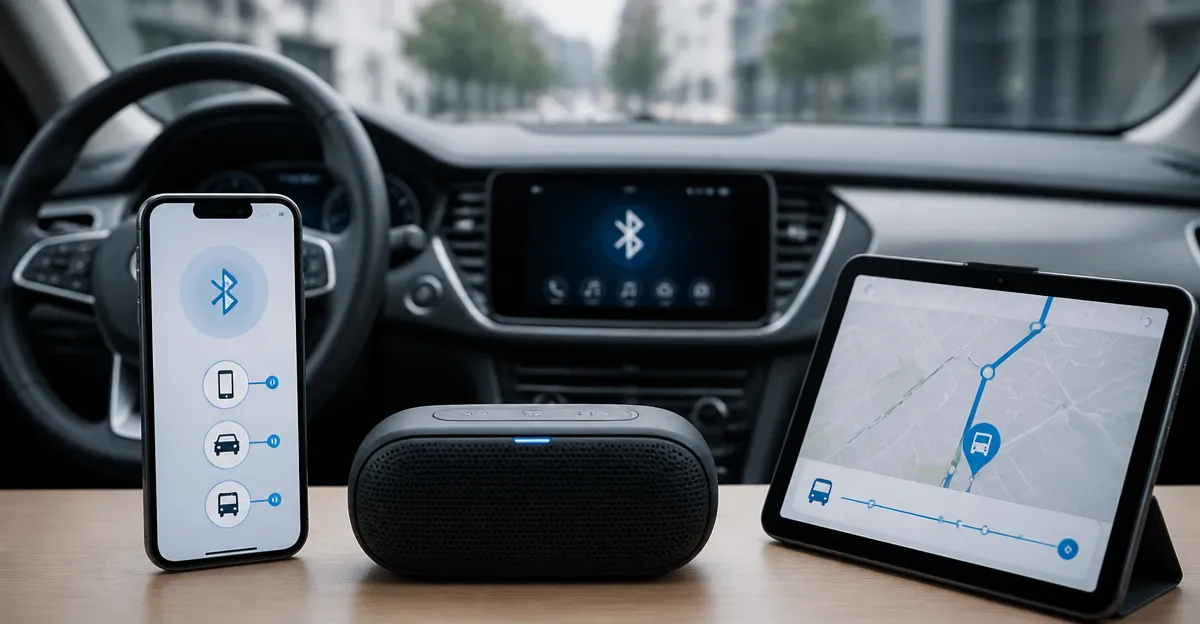
In today’s connected world, a driver often needs to maintain simultaneous audio streams from a smartphone, a vehicle infotainment system, and transit navigation applications. This guide will teach the reader how to configure Bluetooth multipoint pairing so that these devices cooperate without interruption. By following the step‑by‑step instructions, one will achieve seamless transitions between phone calls, navigation prompts, and music playback. The value lies in increased safety, reduced distraction, and a more enjoyable travel experience.
What You'll Need
- A smartphone running iOS 14 or Android 10 or later.
- A vehicle equipped with Bluetooth audio and optional Apple CarPlay or Android Auto.
- Transit applications such as Google Maps, Waze, or local public‑transport apps.
- Optional audio accessories: Bose A30 Aviation Headset for professional pilots or frequent flyers, and JBL Tune 510BT for everyday commuters.
Step‑by‑Step Instructions
Step 1: Verify Bluetooth Compatibility and Update Firmware
Begin by confirming that the smartphone operating system is up to date; this ensures the latest Bluetooth stack is installed. Open the Settings app, navigate to the System or General section, and select Software Update. Install any pending updates and restart the device. Updating the vehicle infotainment firmware, if an update is offered by the manufacturer, prevents compatibility issues when multiple devices attempt to connect simultaneously.
Step 2: Pair the Primary Device (Smartphone) with the Vehicle
- Enable Bluetooth on the smartphone and set the vehicle system to “pair new device.”
- On the vehicle display, select the phone name that appears and confirm the pairing code on both screens.
- Once paired, test audio playback by playing a short music clip; the sound should emanate from the car speakers.
- If the vehicle supports Apple CarPlay or Android Auto, follow the on‑screen prompts to complete the integration.
At this stage, the vehicle becomes the primary Bluetooth sink, handling navigation prompts and media from the phone. Ensuring a stable primary link reduces latency when a secondary device later joins the session.
Step 3: Enable Multipoint Capability on the Headset
Multipoint functionality allows a single headset to maintain simultaneous connections to two Bluetooth sources. For professional pilots who require crystal‑clear communication in noisy cockpits, the Bose A30 Aviation Headset offers three selectable active‑noise‑cancellation modes, a low‑clamp force design, and a digital ANR system that adapts to varying ambient noise levels. Priced at $1,299.00 with a rating of 4.6/5.0 from 676 reviews, it provides unparalleled comfort for extended flights.
To activate multipoint on the Bose A30, press and hold the power button until the voice prompt announces “Multipoint mode.” Then, pair the headset with the smartphone following the standard Bluetooth pairing process. After the first connection is confirmed, repeat the pairing steps with the vehicle’s Bluetooth system; the headset will automatically recognize the second source and display a dual‑connection icon.
For everyday commuters, the JBL Tune 510BT provides a budget‑friendly alternative. It features up to 40 hours of battery life, rapid 5‑minute charging, and a built‑in microphone for hands‑free calls. Priced at $29.95 with a rating of 4.5/5.0 from 92,755 reviews, it supports Bluetooth 5.0 and can remember two paired devices, making it suitable for switching between a phone and a car system.
Step 4: Configure the Vehicle to Prioritize Navigation Prompts
Most modern infotainment systems allow the user to set audio priority for navigation versus phone calls. Access the vehicle’s audio settings menu and locate the “Phone Call Priority” or “Navigation Prompt Volume” option. Set navigation prompts to a higher priority so that turn‑by‑turn directions are heard even when music is playing.
If the vehicle supports “dual audio” (simultaneous playback from two Bluetooth sources), enable this feature to allow the headset to receive phone call audio while the car speakers continue to output navigation cues. This configuration works particularly well with the Bose A30, as its active equalization ensures that incoming speech remains intelligible over background cockpit noise.
Step 5: Pair the Transit Application to the Headset (Optional)
Some transit apps can stream audio directly to a Bluetooth headset, providing audible alerts for bus arrivals or train departures. Open the transit app, navigate to Settings, and select “Audio Output.” Choose the paired headset (Bose A30 or JBL Tune 510BT) as the output device.
Test the configuration by requesting a real‑time arrival estimate; the app should deliver the spoken information through the headset while the vehicle continues to play music. This separation ensures that critical transit updates are not missed during high‑traffic driving scenarios.
Step 6: Fine‑Tune Headset Settings for Optimal Experience
Both headsets provide adjustable noise‑cancellation levels. For the Bose A30, select the “High” mode when flying or driving in a noisy environment, and switch to “Low” mode for quiet office calls. Use the headset’s tap controls to toggle between modes without reaching for the phone.
The JBL Tune 510BT includes a dedicated button for voice assistants; press and hold this button to activate Siri or Google Assistant, allowing hands‑free control of navigation and music. Adjust the microphone sensitivity in the phone’s Bluetooth settings if the voice is muffled during calls.
Tips & Pro Tips
- Keep firmware up to date on both the headset and the vehicle infotainment system; manufacturers frequently release patches that improve multipoint stability.
- When using the Bose A30, ensure the side‑swappable boom microphone is securely attached; a loose mic can cause intermittent audio loss.
- If the JBL Tune 510BT feels too tight, follow the manufacturer’s recommendation to place the ear cups over a soft ball for 24 hours to gently stretch the headband.
- Use a dedicated Bluetooth audio manager app on Android to monitor active connections and quickly switch priority between devices.
Troubleshooting
Problem: The headset drops the connection to the vehicle after a few minutes.
Solution: Reset the Bluetooth module on the vehicle by turning the infotainment system off and on. Re‑pair the headset as a new device, ensuring that the vehicle is set as the primary audio sink.
Problem: Navigation prompts are not audible while on a call.
Solution: Verify that the vehicle’s audio priority is set to “Navigation > Phone.” If the setting is correct, switch the headset to “Low” noise‑cancellation mode to allow the phone audio to pass through more clearly.
Conclusion
By following the steps outlined above, one can successfully configure Bluetooth multipoint pairing for a smartphone, a vehicle infotainment system, and transit applications. The guide demonstrates how to leverage professional‑grade equipment such as the Bose A30 Aviation Headset and affordable options like the JBL Tune 510BT to enhance the overall experience. Implementing the recommended settings improves safety, reduces driver distraction, and ensures that critical audio cues are never missed. Readers are encouraged to apply these techniques on their next journey and enjoy a truly connected driving environment.
Products Mentioned in This Guide
Frequently Asked Questions
What is Bluetooth multipoint pairing and why use it while driving?
Bluetooth multipoint lets a single device connect to multiple audio sources (phone, car, navigation) simultaneously, ensuring calls, music, and directions play without manual switching.
Can I set up multipoint pairing on both iOS and Android phones?
Yes; iOS 14+ and Android 10+ both support multipoint, though the exact steps differ slightly in each operating system’s Bluetooth settings.
Do I need a specific car infotainment system for multipoint to work?
Your vehicle must have Bluetooth audio capability and, optionally, Apple CarPlay or Android Auto; most modern systems support multipoint out of the box.
How do I prioritize audio sources (e.g., navigation over music) when using multipoint?
Most head units automatically lower music volume for navigation prompts; you can also adjust priority in the phone’s Bluetooth settings or the car’s audio menu.
Will using Bluetooth headphones like the JBL Tune 510BT affect multipoint performance?
Headphones that support multipoint can join the same Bluetooth network, but they may override the car’s audio; ensure the headset is set to “media only” to keep calls and navigation routed through the car.