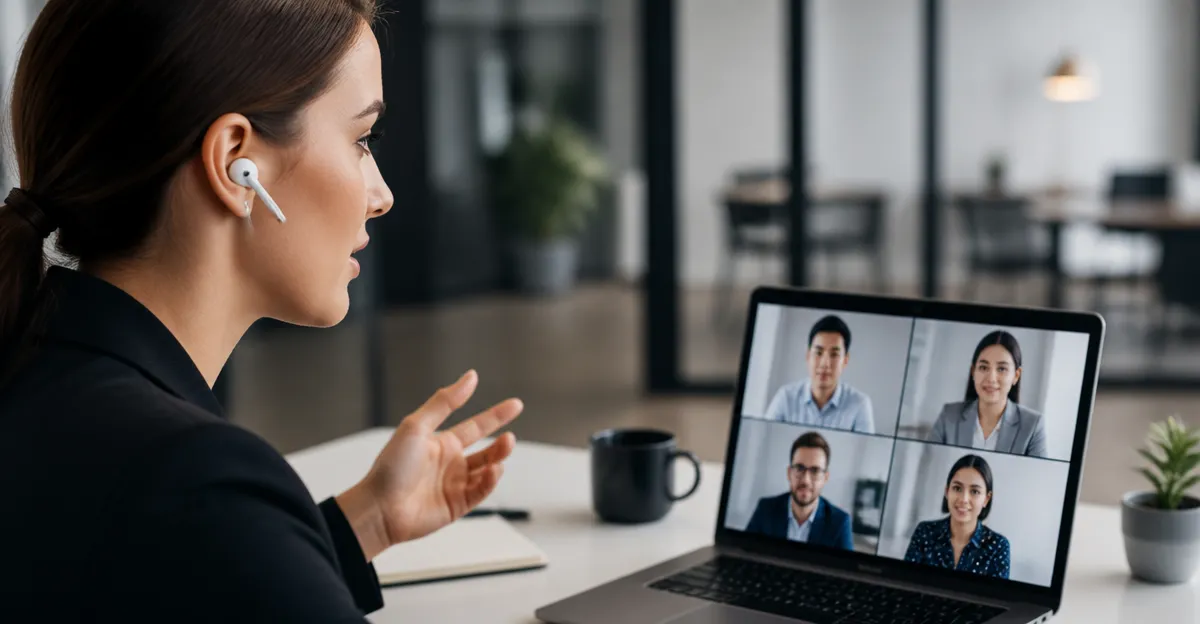
How to Optimize Your Earbud Mic for Accurate Live Translation: Step‑by‑Step Guide to Placement, Settings & Noise Reduction
Introduction
This guide explains how one can achieve reliable live translation by configuring the microphone of true‑wireless earbuds. The reader will learn how to position the earbuds, adjust software settings, and apply noise‑reduction techniques that improve speech clarity. Accurate translation relies on a clear audio signal, and the steps outlined here will minimise background interference. By following the procedures, one can enjoy seamless multilingual conversations during travel, business meetings or remote collaboration.
What You'll Need
- True‑wireless earbuds with built‑in microphones (examples are listed in the Products Mentioned section).
- A smartphone or tablet running a translation‑compatible app.
- An internet connection for cloud‑based translation services.
- A quiet environment for initial calibration.
- Optional: a protective case or lanyard to keep earbuds stable during movement.
Step 1: Choose Earbuds with High‑Quality Microphones
Selecting earbuds that provide clear voice capture is the foundation of accurate translation. The Soundcore P20i Earbuds feature dual microphones and an AI‑enhanced algorithm that isolates the speaker's voice from ambient noise. Priced at $19.99 and rated 4.4 stars by over 113,000 reviewers, they offer a cost‑effective solution for users who do not require premium brand ecosystems. Their 10 mm drivers also deliver balanced sound, which helps the translation app recognise speech patterns accurately.
For users invested in the Apple ecosystem, the Apple AirPods Pro 3 provide advanced microphone arrays, spatial audio processing and real‑time adaptive EQ. Although priced at $189.99, the 4.4‑star rating from 14,010 reviews reflects superior build quality and seamless integration with iOS translation features. The built‑in heart‑rate sensor and live‑translation capability illustrate the device's focus on health‑aware, multilingual use cases.
Step 2: Verify Firmware and App Updates
Before configuring settings, ensure that the earbuds run the latest firmware. Firmware updates often include microphone calibration improvements and reduced latency, both of which are critical for live translation. Open the companion app – Soundcore for the P20i or the Apple Settings app for AirPods – and check for updates. Apply any pending updates, then restart the earbuds to allow the new firmware to initialise.
Updating the translation application is equally important. Services such as Google Translate, Microsoft Translator or Apple Translate release optimisation patches that enhance speech‑to‑text accuracy. Keeping both hardware and software current reduces the likelihood of mismatched audio formats that can degrade translation quality.
Step 3: Position the Earbuds Correctly
Proper placement of the earbuds ensures that the microphones capture the speaker's voice without obstruction. Insert the earbuds so that the silicone tip creates a gentle seal within the ear canal; this seal also reduces wind noise. For the Soundcore P20i, the lanyard attached to the charging case can be looped around the neck to prevent accidental dislodgement during movement.
When using the AirPods Pro 3, select the appropriate ear tip size – the device includes five sizes – to achieve a secure fit. A snug fit positions the outward‑facing microphone just outside the ear canal, where it can pick up speech while attenuating background sounds. Verify that the microphone port is not covered by earwax or debris, as this can impair clarity.
Step 4: Enable Noise Reduction Features
Both product families incorporate active noise cancellation (ANC) that can be leveraged during translation. Activate ANC on the Soundcore P20i via the Soundcore app; the feature reduces ambient frequencies that would otherwise be interpreted as speech by the translation engine. For the AirPods Pro 3, enable ANC in the Control Center or Settings, and consider using the Transparency mode when occasional environmental awareness is required.
In addition to hardware ANC, enable software‑based noise suppression within the translation app if available. Many apps provide a “noise reduction” toggle that applies digital filters to the incoming audio stream. Combining hardware and software suppression yields the cleanest possible voice signal.
Step 5: Calibrate Microphone Sensitivity
Most companion apps allow users to adjust microphone sensitivity. In the Soundcore app, navigate to the microphone settings and select a medium sensitivity level; this prevents the microphone from amplifying distant chatter. For AirPods Pro 3, the adaptive EQ automatically adjusts gain based on ear geometry, but users can fine‑tune the volume in the iOS Settings under Accessibility > Audio/Visual > Phone Noise Cancellation.
After adjusting sensitivity, perform a short test recording using the phone's voice memo feature. Playback the recording to confirm that speech is clear and free of distortion. If the audio sounds muffled, reduce the seal tightness slightly or lower the sensitivity setting.
Step 6: Configure Translation App Settings
Open the translation app and select the source and target languages. Enable “Live Conversation” mode if the app supports it, as this mode streams audio directly to the translation engine without requiring manual activation. In the app's audio settings, choose the earbuds as the input device; this ensures that the app receives the processed microphone signal rather than the phone's built‑in mic.
Some apps allow the user to select a “speech model” optimized for noisy environments. Choose the model that matches the current setting – for example, “Outdoor” when translating while walking. This selection tailors the algorithm to expect certain background patterns, further improving accuracy.
Step 7: Test in Real‑World Conditions
Conduct a live translation trial in a typical environment, such as a café or public transport. Speak clearly into the earbud microphone while the translation app displays the target language text. Observe any lag or misinterpretation, and adjust microphone placement or sensitivity accordingly.
If the translation appears delayed, verify that the Bluetooth connection is stable. The Soundcore P20i uses Bluetooth 5.3, providing a reliable link up to 15 m, while the AirPods Pro 3 utilise Apple's H2 chip for low‑latency streaming. Re‑pair the earbuds if connection drops persist.
Step 8: Maintain Earbuds for Ongoing Performance
Regular cleaning of the microphone ports and ear tips prevents buildup that can degrade audio quality. Use a soft, dry brush to remove debris, and replace silicone tips periodically when they become worn. For the Soundcore P20i, the charging case includes a lanyard that can be wiped clean with a damp cloth; the case itself is IP‑rated for water resistance, but submerging it should be avoided.
Monitor battery health, as low power can affect Bluetooth transmission strength. The P20i offers 30 hours of total playtime with a quick 10‑minute charge providing two additional hours. The AirPods Pro 3 deliver up to 8 hours with ANC enabled; charging the case daily ensures consistent performance during translation sessions.
Tips & Pro Tips
- Prefer a quiet corner for the initial calibration; background chatter will skew sensitivity settings.
- When translating in a moving vehicle, enable the “Wind Noise Reduction” feature if the app provides it.
- Use the “Find My Earbuds” function on Soundcore to locate misplaced units before a critical meeting.
- For extended conversations, switch to the AirPods 4 ANC model if battery life is a concern; it offers up to 4 hours with ANC and a compact case.
- Combine earbud ANC with a simple external windscreen (a small foam cover) for outdoor use; this reduces wind‑induced distortion.
Troubleshooting
Problem: Translation app reports “no audio input.”
Solution: Verify that the earbuds are selected as the audio source in the app settings, and confirm that Bluetooth is connected. Re‑start the app and re‑pair the earbuds if necessary.
Problem: Speech is garbled or delayed.
Solution: Reduce microphone sensitivity, ensure a stable Bluetooth link, and close background applications that may consume bandwidth.
Problem: Earbuds disconnect frequently during movement.
Solution: Keep the earbuds within the recommended 15 m range, and avoid obstacles such as thick walls. The Soundcore P20i's Bluetooth 5.3 chipset is designed for stable connections in crowded environments.
Conclusion
Optimising the microphone of true‑wireless earbuds involves careful selection, proper placement, firmware updates, noise‑reduction activation and fine‑tuning of both hardware and software settings. By following the eight steps outlined above, one can achieve clear, real‑time translation that enhances communication across languages. The recommended earbuds – Soundcore P20i, Apple AirPods Pro 3, Btootos Bluetooth Earbuds, Apple AirPods 4 ANC and Apple AirPods 4 – each provide distinct advantages that align with different budgets and ecosystem preferences. Implement these practices to enjoy reliable multilingual conversations in any setting.
Products Mentioned in This Guide
Frequently Asked Questions
How should I position my true‑wireless earbuds for optimal microphone performance?
Place the earbuds so the mic openings face your mouth and sit snugly in the ear canal, avoiding blockage by hair or ear tips.
Which smartphone settings improve earbud mic clarity for live translation?
Enable high‑quality audio input, disable noise‑cancellation that interferes with speech, and set the translation app to use the earbud mic as the default source.
Do I need an internet connection for real‑time translation?
Yes, most live‑translation services rely on cloud processing, so a stable Wi‑Fi or cellular connection is required.
Can I use noise‑reduction accessories with earbuds?
Using a windscreen or foam cover on the mic and calibrating in a quiet room can significantly reduce background noise.
What earbuds are recommended for accurate live translation?
Models with dual‑mic arrays and high‑SNR ratings, such as the Apple AirPods Pro, Sony WF‑1000XM4, or Samsung Galaxy Buds Pro, work best.