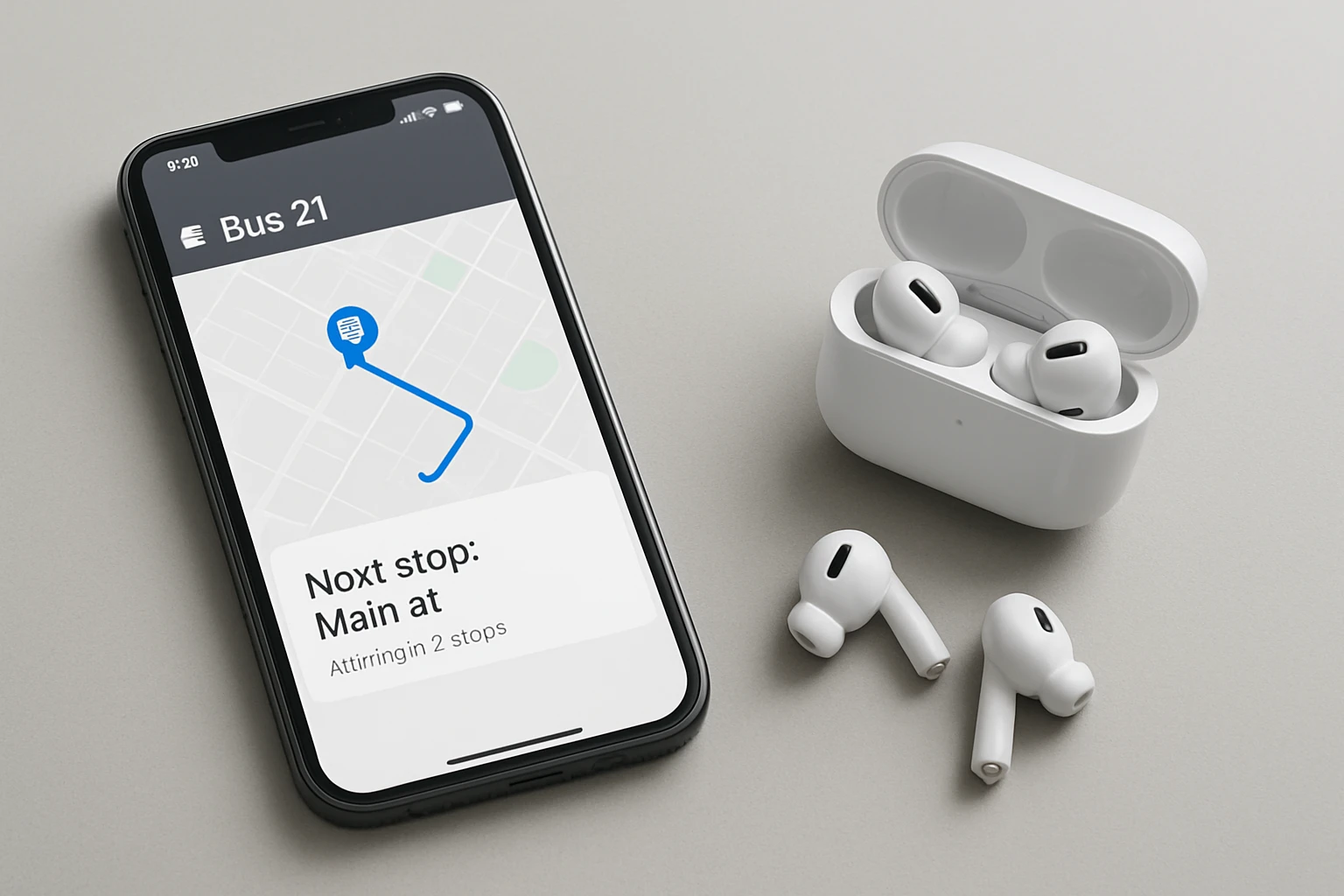
How to Integrate Earbuds with Transit App Stop Alerts: Step‑by‑Step Guide for iPhone & Android
Introduction
The modern commuter relies on real‑time transit applications to navigate buses, trains, and subways. By coupling those applications with a reliable pair of earbuds, one can receive audible stop alerts without glancing at a screen. This guide explains how to configure the Transit app on both iPhone and Android devices, pair suitable earbuds, and fine‑tune audio settings for maximum safety and convenience. Readers will learn practical steps, expert tips, and troubleshooting methods that apply regardless of the brand of earbuds used.
While the instructions work with any Bluetooth headset, the guide highlights a few affordable and high‑quality options that simplify the process. Each recommendation includes price, rating, and key features drawn from verified Amazon listings. The result is a comprehensive workflow that transforms a routine commute into a hands‑free, eyes‑free experience.
What You Will Need
- A smartphone running iOS 14 or later, or Android 9 or later.
- The latest version of the Transit app installed from the App Store or Google Play.
- A pair of Bluetooth earbuds that support voice prompts and have a stable connection.
- An optional charging case to keep earbuds powered throughout the day.
All of the earbuds listed later are compatible with both platforms and include features such as water resistance, long battery life, and customizable equalizer settings.
Step 1: Install and Configure the Transit App
Begin by downloading the Transit app from the official store. Open the app, grant location permissions, and allow push notifications. In the settings menu, locate the "Audio Alerts" or "Stop Alerts" toggle and enable it. This option instructs the app to emit a brief tone or spoken cue when the vehicle approaches the selected stop.
If the app offers a "Voice Assistant" integration, activate it to allow spoken stop names. This feature is particularly useful when using earbuds that support voice prompts, because the audio will be delivered directly through the earpieces rather than the phone speaker.
Confirm that the alert volume is set to a comfortable level within the app. Many transit applications allow a separate volume slider for audio alerts, which prevents the alerts from being drowned out by background music.
Step 2: Prepare Your Earbuds for Pairing
Before pairing, ensure the earbuds are fully charged. Most modern earbuds provide a quick‑charge capability; for example, the JBL Vibe Beam can gain two hours of playback after a ten‑minute charge. Open the charging case, remove the earbuds, and place them in pairing mode. This is typically achieved by holding the touch sensor on each bud for a few seconds until a flashing light appears.
On the smartphone, navigate to Bluetooth settings and select the earbuds from the list of available devices. Confirm the connection by listening for a brief chime or verbal cue from the earbuds.
For users who prefer a more feature‑rich experience, the Soundcore P30i offers active noise cancelling and a dedicated app that allows fine‑tuning of the audio profile. The built‑in 4‑mic system also ensures clear voice prompts during transit alerts.
Step 3: Optimize Earbud Settings for Transit Alerts
Open the companion app for the selected earbuds, if one is available. For the JBL Vibe Beam, the JBL Headphone app provides a ten‑band graphic equalizer and a "VoiceAware" feature that balances the user’s voice during calls. Adjust the equalizer to a neutral or slightly bass‑boosted preset to ensure that alert tones are audible over ambient noise.
For the Soundcore P30i, enable the "Transparency Mode" when traveling in noisy environments such as subway stations. This mode allows external sounds to be heard while still delivering the alert tone, reducing the risk of missing a stop due to excessive isolation.
If you own the premium Apple AirPods Pro 3, activate the Adaptive EQ and Spatial Audio features. Adaptive EQ automatically adjusts the frequency response to the shape of the ear canal, delivering clear alerts regardless of ear size. Spatial Audio can be disabled for simple stereo playback to conserve battery during long commutes.
Step 4: Configure Audible Stop Alerts in the Transit App
Return to the Transit app and select a favorite route. Within the route details, enable "Speak Stop Names" if the option exists. This setting causes the app to announce the upcoming stop through the connected earbuds. Test the feature by selecting a nearby stop and pressing the "Preview" button, if available.Adjust the speech rate to a comfortable pace. A slower speech rate reduces the likelihood of missing the alert while walking or standing on a moving platform.
For Android users, ensure that the app has permission to use the device’s media audio channel. Some devices route audio alerts through the speaker by default; granting the appropriate permission forces the alerts through the Bluetooth audio stream.
Step 5: Conduct a Real‑World Test
Before relying on the system for daily travel, perform a controlled test. Choose a route with frequent stops, enable the audio alerts, and observe the earbuds as the vehicle approaches each stop. Verify that the alert tone or spoken name is clearly audible and that the earbuds remain connected throughout the journey.
If the connection drops, consider moving closer to the phone or reducing interference from other Bluetooth devices. The Soundcore P20i, priced at $19.98, offers a robust Bluetooth 5.3 connection and a compact case that can be attached to a keyring, ensuring the earbuds are always within reach.
Document any latency between the visual cue on the app and the audible alert. Some earbuds introduce a slight delay; if this delay exceeds one second, switching to a lower‑latency mode (often labeled "Video Mode" in the JBL app) can improve synchronization.
Tips & Pro Tips
- Maintain a snug fit. A secure seal prevents external noise from drowning out alerts. The ergonomic, stick‑closed design of the JBL Vibe Beam provides a comfortable fit that many users forget they are wearing.
- Use the app’s equalizer. Slightly boosting mid‑range frequencies enhances speech intelligibility without sacrificing music quality.
- Leverage transparency mode in crowded stations. The Soundcore P30i’s adaptive noise cancelling automatically selects the optimal level based on ambient sound.
- Keep firmware up to date. Manufacturers regularly release updates that improve Bluetooth stability and battery performance.
- Protect the charging case. A silicone sleeve extends the lifespan of the case and prevents scratches that could affect the charging contacts.
Troubleshooting
Problem: Audio alerts do not play through earbuds.
Solution: Verify that the Transit app’s audio output is set to "Bluetooth" rather than "Phone Speaker." On iOS, open Control Center, long‑press the audio card, and select the earbuds. On Android, tap the volume icon and choose the Bluetooth device.
Problem: Intermittent disconnections during a ride.
Solution: Ensure the phone’s Bluetooth cache is cleared. On Android, go to Settings → Apps → Bluetooth → Storage → Clear Cache. On iOS, toggle Bluetooth off and on again.
Problem: Alert volume is too low in noisy environments.
Solution: Increase the alert volume within the Transit app and enable the earbud’s volume boost feature, if available. The JBL Vibe Beam provides a quick‑press volume control on each bud.
Conclusion
By following the steps outlined above, commuters can transform any pair of Bluetooth earbuds into a reliable audio companion for transit stop alerts. The integration enhances safety, reduces screen dependence, and creates a smoother travel experience on both iPhone and Android platforms. Whether one chooses the budget‑friendly Soundcore P20i, the feature‑rich Soundcore P30i, the bass‑heavy JBL Vibe Beam, or the premium Apple AirPods Pro 3, each product offers distinct advantages that align with different user preferences.
Readers are encouraged to experiment with the recommended settings, keep firmware current, and enjoy the convenience of hands‑free navigation on every journey.
Products Mentioned in This Guide
JBL Vibe Beam
Price: $30.64 | Rating: 4.3/5 (37,798 reviews)
Features: 8 mm drivers with Deep Bass Sound, up to 32 hours total battery life, IP54 water and dust resistance, VoiceAware hands‑free calls, Bluetooth 5.2.
Soundcore P30i
Price: $24.99 | Rating: 4.4/5 (32,201 reviews)
Features: Active Noise Cancelling up to 42 dB, Transparency Mode, 10 mm drivers with BassUp technology, 45 hours total playtime with case, 2‑in‑1 charging case that doubles as a phone stand, Bluetooth 5.4.
Soundcore P20i
Price: $19.98 | Rating: 4.4/5 (105,295 reviews)
Features: 10 mm drivers with powerful bass, 30 hours total playtime, AI‑enhanced clear calls, 22 EQ presets via app, compact case with lanyard.
Apple AirPods Pro 3
Price: $229.00 | Rating: 4.5/5 (9,356 reviews)
Features: Industry‑leading active noise cancellation, Adaptive EQ, Spatial Audio, heart‑rate sensing, live translation, up to 8 hours ANC battery life, seamless integration with Apple ecosystem.
Frequently Asked Questions
How do I enable audible stop alerts in the Transit app?
Open the Transit app, go to Settings → Notifications, and toggle on “Voice Alerts” or “Audio Stop Alerts” for your routes.
Can any Bluetooth earbuds work with the Transit app’s alerts?
Yes, any Bluetooth headset that pairs with your phone will receive the alerts, though some models offer better latency and volume control.
What steps are required to pair earbuds with an iPhone for Transit alerts?
Turn on Bluetooth, put earbuds in pairing mode, select them under Settings → Bluetooth, then confirm the connection before enabling alerts in the app.
How do I adjust alert volume so I can hear stops over street noise?
Use the phone’s volume buttons while an alert is playing, or adjust the “Media” volume in Settings; many earbuds also have independent volume controls.
Why am I not hearing alerts after updating the Transit app?
A recent update may reset notification permissions; re‑grant audio access in Settings → Transit → Allow Notifications and ensure Bluetooth is still connected.